
Understanding Compatibility: Devices That Support Global IPTV
Ensuring your device supports global IPTV apps is crucial for enjoying uninterrupted streaming. This guide covers device compatibility essentials, technical considerations, and practical tips.
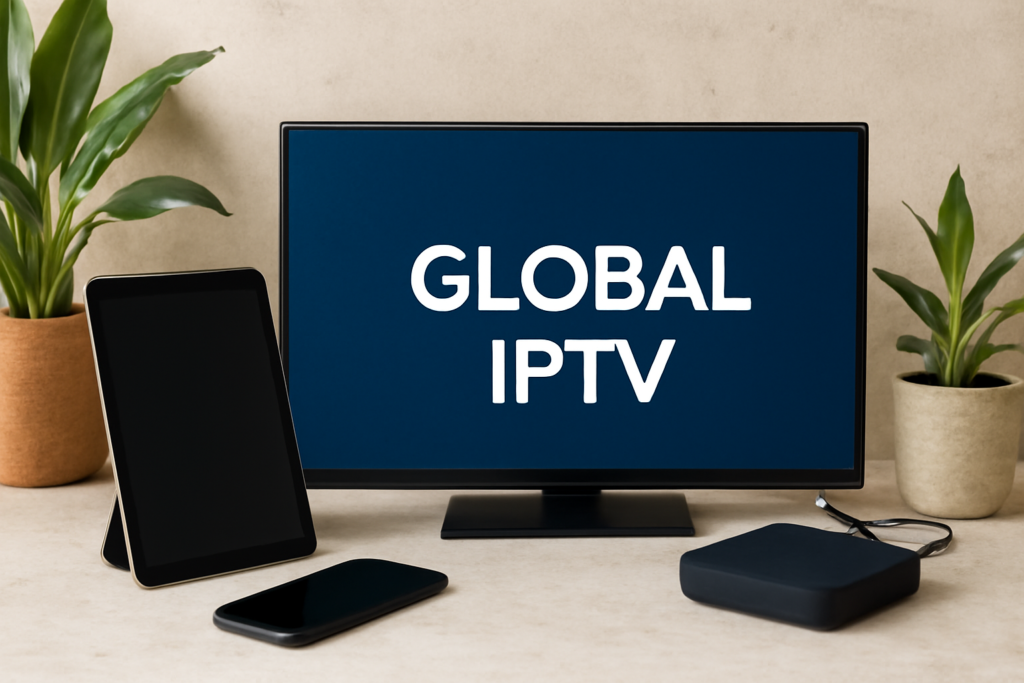
Understanding Compatibility: Devices That Support Global IPTV Apps
Global IPTV has revolutionized how viewers access television content worldwide, providing an extensive array of channels, on-demand services, and live streams from across the globe. As the popularity of IPTV continues to grow, so does the variety of devices capable of supporting these services. However, to enjoy a seamless streaming experience, your device must be compatible with the IPTV app you intend to use. Compatibility depends on multiple factors, including hardware specifications, operating system support, network capabilities, and the specific technical requirements of the IPTV app itself. This comprehensive guide explores what makes a device suitable for global IPTV apps, how to verify compatibility, and tips for optimizing your setup for the best viewing experience.
Key Factors Influencing Device Compatibility with Global IPTV Apps
1. Operating System Support
The foundation of device compatibility lies in the operating system (OS). Most IPTV apps are developed for popular platforms such as Android, iOS, Windows, macOS, and specialized smart TV OS like Tizen (Samsung), WebOS (LG), and Roku OS. Compatibility is often determined by whether the IPTV provider offers an official app for that platform. For example:
- Android: Most IPTV providers have dedicated apps available via the Google Play Store, supporting a wide range of Android smartphones, tablets, and Android TV devices.
- iOS: Apple devices such as iPhones and iPads support IPTV apps through the App Store.
- Windows & macOS: Desktop users can access IPTV via browser-based players, dedicated apps, or media players like VLC.
- Smart TV OS: Compatibility varies; Samsung’s Tizen, LG’s WebOS, and Sony’s Android TV all support different apps or browser-based streaming options. Ensure your smart TV’s firmware is up to date for optimal app support.
Note that some IPTV services may require third-party apps or browser access on desktops, especially if they do not have official apps for certain platforms. Always verify whether the app is officially supported on your device’s OS before subscribing or attempting installation.
2. Hardware Specifications
The hardware capabilities of your device significantly impact streaming quality and stability. Essential hardware considerations include:
- Processing Power: A capable processor ensures smooth playback, especially for high-definition (HD) or 4K streams. Devices with outdated or low-performance CPUs may experience buffering or crashes.
- Memory (RAM): At least 2GB of RAM is recommended for basic streaming; 4GB or more is preferable for multitasking or higher resolutions.
- Storage: Sufficient storage space is necessary for app installation, caching, and temporary files, particularly if the device supports recording or offline viewing.
Devices with outdated hardware may struggle with high-quality streams, leading to buffering, lag, or poor resolution. When selecting a device for IPTV, consider not only current needs but also future content quality upgrades.
3. Network Requirements
A reliable and fast internet connection is crucial for IPTV streaming. Devices should support modern network standards such as Wi-Fi 5 (802.11ac) or Wi-Fi 6 (802.11ax), or wired Ethernet connections for maximum stability. Key points include:
- Bandwidth: Streaming 4K content typically requires at least 25 Mbps download speed. Lower speeds may suffice for SD or HD streams but can cause buffering.
- Wi-Fi Standards: Devices supporting newer Wi-Fi standards tend to offer better stability and speed, reducing interruptions during streaming.
- VPN Support: Some users employ VPNs to access geo-restricted content securely. Ensure your device supports VPN configurations if needed.
Inconsistent or slow internet connections are common causes of poor IPTV experiences. Verify your network’s capacity before choosing a device for high-quality streaming.
4. App Compatibility and Availability
While many IPTV apps are available through official app stores, some may require sideloading or third-party sources, especially on Android-based devices. Compatibility issues can arise if:
- The app version is incompatible with your device’s OS version.
- Your device’s hardware does not meet minimum requirements.
- The app is not officially supported on your device’s platform.
Always check with your IPTV provider or app developer for supported devices and software versions to avoid installation issues or functionality problems.
Popular Devices Supporting Global IPTV Apps
Many devices are suitable for IPTV viewing, provided they meet the above criteria. Here are some of the most popular options:
- Smart TVs: Samsung Smart TVs (Tizen), LG WebOS, Sony Android TVs, and others—these support dedicated IPTV apps or browser-based streaming. Ensure your TV firmware is current for optimal compatibility.
- Streaming Devices: Amazon Fire TV Stick, Google Chromecast with Google TV, Roku devices—these support a broad range of IPTV apps via app stores or sideloading methods.
- Mobile Devices: Android smartphones and tablets, iPhones, and iPads—support most IPTV apps through official app stores.
- Computers: Windows and macOS laptops/desktops—can access IPTV via browser, dedicated apps, or media players like VLC or Kodi.
- Set-Top Boxes & Mini PCs: Android TV boxes, NVIDIA Shield, Intel-based mini PCs—offer flexible options for IPTV setup, often with better hardware and customization capabilities.
Ensuring Your Device is Ready for Global IPTV Streaming
Before subscribing to an IPTV service, ensure your device is compatible and optimized for streaming:
- Check Supported Platforms: Visit the IPTV provider’s website or app store listing to confirm device compatibility.
- Verify Hardware Specifications: Compare your device’s specs against the recommended requirements for smooth streaming.
- Test Internet Connection: Use speed tests to confirm your bandwidth meets the demands of your desired content quality.
- Update Firmware/OS: Keep your device’s firmware and operating system up to date to benefit from security patches and compatibility improvements.
- Configure VPNs or Security Settings: If accessing geo-restricted content or enhancing privacy, ensure your device supports VPN setup and proper security measures.
If your current device does not meet these requirements, consider upgrading to a more capable model or optimizing your network setup for better performance.
Additional Tips for Optimal IPTV Experience
- Use Ethernet when possible: Wired connections are generally more stable than Wi-Fi, especially for high-resolution streams.
- Limit background activity: Close unnecessary apps or downloads to free up bandwidth and processing power.
- Regularly update apps and firmware: Keep all software current to ensure compatibility and security.
- Adjust streaming quality: If experiencing buffering, lower the stream resolution in the app settings to match your network capacity.
- Use a quality VPN: For accessing geo-restricted content securely, select a reputable VPN provider compatible with your device.
Common FAQs about Device Compatibility and Global IPTV Apps
Q1: Can I use my smart TV to watch IPTV without a set-top box?
Yes, many smart TVs support IPTV apps directly through their app stores or web browsers. Ensure your TV’s firmware is up to date and that the app is compatible with your TV’s OS.
Q2: Is it possible to run IPTV apps on older devices?
It depends on the device’s hardware and OS version. Older devices with outdated hardware or unsupported OS versions may struggle with high-definition streams or may not support the latest app versions. Upgrading hardware or using a compatible streaming device can improve your experience.
Q3: What should I do if an IPTV app is not working on my device?
First, verify device compatibility and ensure the app is updated. Restart your device, check your internet connection, and reinstall the app if necessary. If issues persist, consult the IPTV provider’s support resources or consider using alternative devices.
Q4: Are there security concerns with sideloading IPTV apps?
Yes, sideloading apps from unofficial sources can pose security risks, including malware or data breaches. Always prefer official app stores or trusted sources, and ensure your device has security measures in place.
Conclusion
Understanding device compatibility is essential for enjoying seamless access to global IPTV apps. By evaluating your device’s operating system support, hardware capabilities, network readiness, and app availability, you can select the best device for your streaming needs. Proper setup and maintenance ensure a reliable, high-quality IPTV experience, whether on a smart TV, streaming device, mobile device, or computer. Staying informed about compatibility requirements and best practices helps you avoid interruptions and fully enjoy the diverse world of international television content.
For further insights on device choices and setup tips, explore our related articles such as Top 5 IPTV Devices Popular Among UK Users or learn about optimizing your setup with Tips for Extending the Lifespan of Your IPTV UK Server Hardware.
