
How to Set Up IPTV on Chromecast with Google TV in the UK: Compatibility, Apps and Troubleshooting
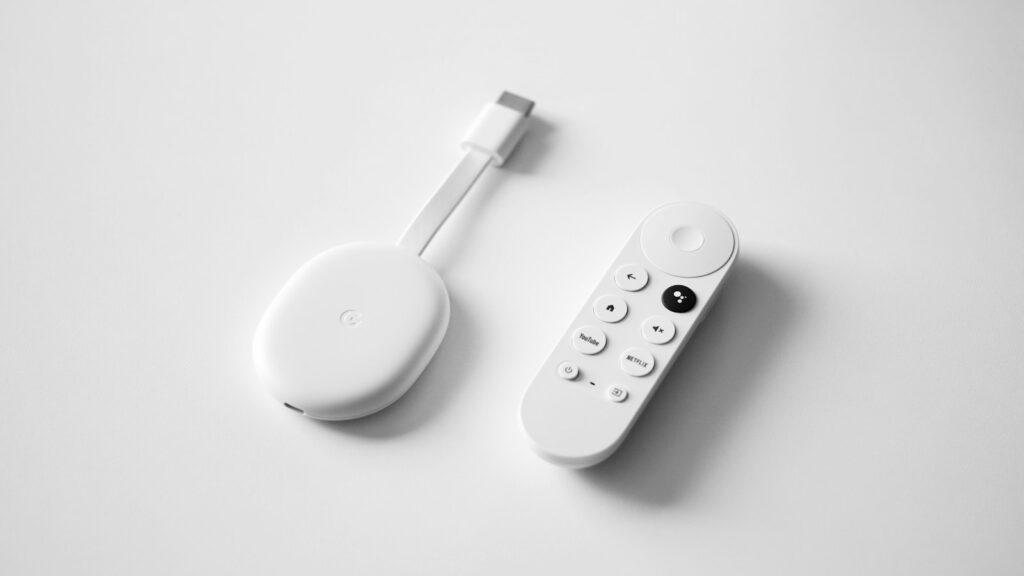
If you want IPTV on Chromecast with Google TV, the first thing to understand is that Chromecast with Google TV is different from an older Chromecast that mainly receives casts from a phone. Chromecast with Google TV has its own screen interface, remote and app environment, so a compatible IPTV player can be installed directly on the device.
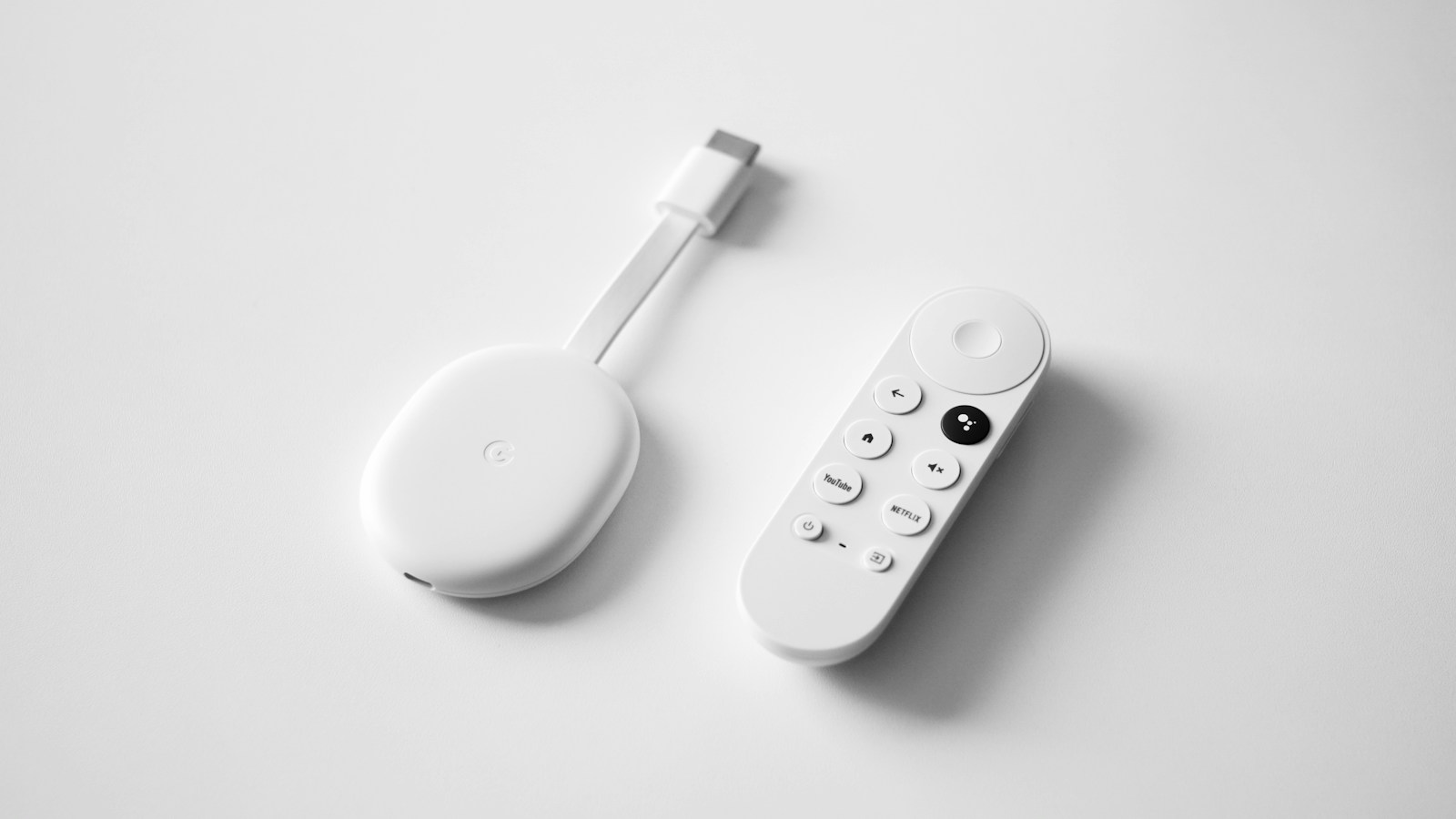
This IPTV on Chromecast with Google TV guide explains setup from a UK viewer’s perspective. It covers device identification, Google TV preparation, IPTV player compatibility, M3U and Xtream Codes, network checks, common playback problems and the difference between direct apps and casting.
What You Need Before Setting Up IPTV
A straightforward setup needs four things:
- A Chromecast with Google TV connected to a television with an available HDMI input.
- A Google Account and a working Google TV setup.
- A stable Wi-Fi or suitable Ethernet connection.
- An IPTV service and player that are compatible with your device and provide access you are authorised to use.
Google’s current setup guidance says Chromecast with Google TV can be connected through HDMI and configured with the Google Home app or the remote. A secure wireless or Ethernet connection is also supported. Google’s Chromecast with Google TV setup guide is the best reference when the initial device setup itself is not complete.
Chromecast vs Chromecast with Google TV: Why It Matters
The word Chromecast can cause confusion because older Chromecast devices and Chromecast with Google TV are not used in exactly the same way.
| Device type | How it works | IPTV setup approach |
|---|---|---|
| Chromecast with Google TV | Has its own interface, remote and installed apps. | Use a compatible IPTV player directly on the device. |
| Older Chromecast | Primarily receives compatible content cast from another device. | Use a supported phone, tablet or browser casting workflow. |
Google’s documentation confirms that Google TV can receive casts from phones, tablets and laptops when both devices are connected to the same Wi-Fi network. That is useful, but it is not the same as installing and running an IPTV player directly on Chromecast with Google TV.
How to Prepare Chromecast with Google TV for IPTV
1. Connect the device to your TV
Plug the Chromecast with Google TV into an available HDMI input and connect its power supply. Switch the television to the HDMI input used by the Chromecast.
2. Complete Google TV setup
Follow the on-screen instructions. Google provides a setup route through the Google Home app, including QR-code pairing, while supported setups can also be completed with the remote.
3. Connect to your home network
Choose your home Wi-Fi network and enter the password. If your setup supports Ethernet, a wired connection can also be useful when you want to remove Wi-Fi signal quality from the troubleshooting equation.
4. Install available system updates
Before testing IPTV, make sure the Google TV device is up to date. This reduces the chance that an old system version is responsible for an app or playback problem.
5. Open the Google Play Store
Google TV supports app installation through Google Play on supported devices. Search for the IPTV player you intend to use and confirm that it is available for your device and current software version.
Choosing an IPTV Player for Google TV
There is no single IPTV player that is automatically best for every viewer. The important test is compatibility, usability and whether the player supports the login method supplied by your authorised IPTV service.
Before installing a player, check:
- Whether the application supports Google TV or Android TV.
- Whether it accepts your supplied M3U/M3U8 playlist or Xtream Codes details.
- Whether the app is available through an official app store or trusted distribution route.
- Whether the developer still maintains the application.
- Whether the player provides the features you actually need, such as EPG support or favourites.
Do not choose an application only because an old tutorial recommends it. App availability and platform support can change.
How to Add an IPTV Playlist
The exact screens depend on the player, but the process normally follows the same logic.
- Open the compatible IPTV player.
- Choose the option for adding a playlist or account.
- Select the login method supplied by your IPTV service.
- Enter the information carefully.
- Allow the application to load the channel list and guide data.
- Test several live channels instead of judging the setup from one stream.
Never publish or share your complete playlist URL, username, password or server details in screenshots or public forums. Treat them as private account information.
M3U vs Xtream Codes on Google TV
M3U and Xtream Codes are not the same thing. They are different ways an IPTV player may receive access information.
| Method | Typical information required | What to check |
|---|---|---|
| M3U/M3U8 | A playlist URL or supported playlist file. | Confirm the player supports the playlist format and URL. |
| Xtream Codes | Usually a server address, username and password. | Confirm that the player supports the service’s login method. |
If you want a deeper explanation, see our M3U vs Xtream Codes guide. For wider device instructions, our IPTV Installation Guide can help you compare supported setup routes.
Why IPTV May Buffer on Chromecast with Google TV
A successful login does not guarantee perfect playback. Buffering can come from the home network, the device, the player or the individual stream.
Check Wi-Fi first
Make sure the Chromecast is receiving a stable signal. Distance from the router, walls and competing wireless traffic can affect playback.
Test more than one channel
If one channel buffers but several others play normally, the problem may be specific to that stream. If every service struggles, investigate the local connection first.
Reduce competing traffic
Pause large downloads, cloud backups and other high-bandwidth streams for a quick test. If playback improves, household network congestion may be part of the problem.
Restart the device and router
Google’s own troubleshooting guidance recommends rebooting the Chromecast and router as basic troubleshooting steps. Restarting is worth trying before changing several settings at once.
IPTV Login Works but the Channel List Is Empty
An empty channel list can have several causes. First check that the account details were entered correctly. Then confirm that the player supports the exact login method supplied by your service.
If the same account works on another compatible device, compare the two players. This can show whether the issue is with the account, the playlist format or the particular application.
EPG Is Missing or Incorrect
The electronic programme guide is separate from basic live-stream playback. A channel can play even when guide data has not loaded correctly.
Check whether your service supplies compatible EPG data and whether your player has an EPG configuration option. If the problem is specifically missing guide information, see our IPTV EPG troubleshooting guide.
Direct IPTV Apps vs Casting From Your Phone
On Chromecast with Google TV, a direct app is often the more practical route when the required player is compatible. The player runs on the TV device, so you do not need to keep your phone nearby simply to control the stream.
Casting still has its place. Google explains that a phone, tablet or laptop can cast compatible content to Google TV when both devices are connected to the same Wi-Fi network.
If your IPTV player or service specifically supports casting, that can be an alternative. However, the casting experience depends on the app’s Cast support, while direct playback depends on the availability and compatibility of the TV application.
Picture Quality: HD, 4K and IPTV
Chromecast hardware and a 4K television do not automatically make every IPTV stream 4K. The actual picture depends on the source, bitrate, encoding, player, network and display.
If a stream is labelled HD or 4K, judge it by the quality you actually receive. A stable lower-resolution stream can provide a better viewing experience than a higher-resolution stream that repeatedly buffers.
Security and Legal Checks for UK IPTV Users
IPTV is a technology for delivering television and video over internet networks. The legality of a service depends on the rights and permissions behind the content it distributes.
Use services and content that you are legally authorised to access. Avoid suspicious applications, modified packages and unknown download sites. Never disable security protections simply to force an unverified application to run.
When Chromecast with Google TV Is a Good IPTV Option
It can be a useful choice when you already own the device and want a compact TV interface with direct app access. It is especially convenient if the IPTV player you want supports Google TV and your network is reliable.
It may be less suitable when the application you require is unavailable on the platform. In that situation, compare the supported devices before buying another subscription or changing your television.
Quick Setup Checklist
- Identify the exact Chromecast device.
- Complete Google TV setup and connect to a stable network.
- Install a compatible IPTV player through the supported app ecosystem.
- Confirm whether your service uses M3U or Xtream Codes.
- Keep your login credentials private.
- Test several channels and the EPG.
- Check the network before blaming the player or service for buffering.
- Use only content and services you are authorised to access.
Frequently Asked Questions
Can I use IPTV directly on Chromecast with Google TV?
Yes, when the IPTV player you choose supports the device and its current software environment. The player can be installed directly on Google TV rather than relying on phone casting.
Is Chromecast with Google TV the same as an old Chromecast?
No. Chromecast with Google TV has its own interface and remote. Older Chromecast devices primarily receive compatible content cast from another device.
Can I use an M3U playlist on Google TV?
Yes, if the IPTV player you choose supports M3U or M3U8 playlists. The support comes from the player, so check its current features.
Can I use Xtream Codes on Chromecast with Google TV?
You can when your selected IPTV player supports Xtream Codes and your authorised service supplies the required details.
Why is IPTV buffering even though my internet is fast?
Raw speed is only one factor. Wi-Fi quality, congestion, device conditions, player behaviour and the individual stream can also affect playback.
Can I cast IPTV from my phone to Google TV?
Yes, when the app supports Google Cast. Google states that the casting device and Google TV should be connected to the same Wi-Fi network.
Final Thoughts
Setting up IPTV on Chromecast with Google TV is mainly a compatibility exercise. Identify the exact device, complete Google TV setup, choose a supported player and use the login method supplied by your authorised IPTV service.
If playback is unstable, troubleshoot systematically. Check the network, test multiple streams, restart the equipment and separate app problems from source-side problems. For more device help, visit our Installation Guide, and when you are ready to compare available plans, visit our IPTV pricing page.
Sources: Google Chromecast with Google TV setup documentation and Google TV casting documentation.
