
IPTV EPG Not Working? How to Fix Missing or Incorrect TV Guide Data
IPTV EPG not working? Learn how to fix blank, outdated or incorrect programme guide data on Smart TV, Firestick and Android TV.

When an IPTV EPG is not working, the problem is often easier to isolate than it first appears. You may see blank programme information, the wrong show times, missing channels, an EPG that stops updating, or a guide that is several hours out of sync. The important thing is not to keep changing random settings. Work through the likely causes in a sensible order.
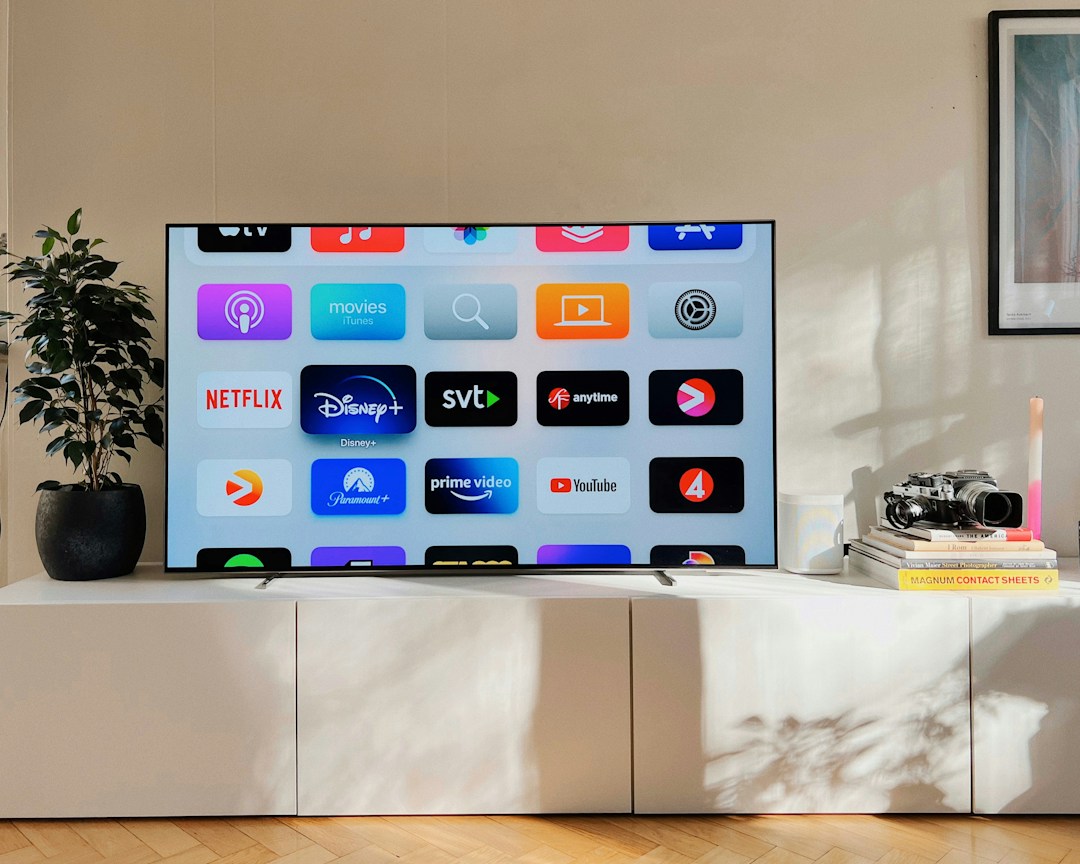
This guide explains what an EPG does, why IPTV guide data can disappear or become inaccurate, and what you can check on a Smart TV, Fire TV, Android TV or other compatible setup. It also shows when the problem is likely to be with the playlist or EPG source rather than your television.
What is an IPTV EPG?
EPG stands for Electronic Programme Guide. In simple terms, it is the programme information shown alongside live television: channel names, programme titles, start times, descriptions and sometimes upcoming schedules. Ofcom describes an EPG broadly as a service that lists or promotes programmes and provides access to them. UK regulation also distinguishes regulated EPG services from the wider technology used to deliver television. See Ofcom’s current EPG information.
In an IPTV player, the guide information may come from data associated with your authorised service or playlist. That means the EPG can fail even when the video stream itself still plays normally.
What does “EPG not working” actually look like?
- The guide is completely blank.
- Some channels have programme information but others do not.
- The channel names appear, but programme titles are missing.
- Programme times are several hours early or late.
- The guide shows yesterday’s information and does not update.
- The EPG loads slowly or disappears after restarting the player.
- The guide works on one device but not another.
1. Check whether the problem is the EPG or the stream
First, separate the two issues. If live channels play correctly but the programme guide is empty, the video stream may be fine and the EPG data may be the part that needs attention. If both the channels and guide fail, investigate the internet connection, login details, playlist or service availability as well.
Test several channels rather than relying on one. If the same guide problem affects every channel, it points towards a general EPG or configuration issue. If only a small group of channels is affected, the data for those channels may be incomplete or incorrectly mapped.
2. Check the EPG source or playlist settings
Many IPTV players can use a playlist together with separate programme-guide data. The exact menu names vary between apps, so do not assume every player uses the same settings.
- Open the playlist or live-TV settings in your IPTV player.
- Check whether an EPG source has actually been assigned.
- Look for an option such as Update EPG, Refresh Guide or Reload Guide Data.
- If your authorised provider supplied a specific EPG address or setup instruction, compare it character by character.
- Save the settings and reload the channel list.
A common mistake is changing the playlist when the playlist itself is working. If channels load normally, avoid replacing working access details without a reason. If the EPG source was supplied by your service provider, ask them to confirm that the guide address and format are still correct.
3. Refresh the guide data
EPG information is data that needs to be retrieved and refreshed. If the player has an option to update the guide, run that update and give it enough time to complete. On some devices, the first refresh can take longer when a large channel list is being processed.
After the refresh, close and reopen the player. Then check whether programme information has returned. If it has not, continue with the next checks instead of repeatedly refreshing the same broken source.
4. Check your device date, time and time zone
If the EPG is present but the programme times are wrong, check the device clock and time-zone settings. An incorrect clock can make otherwise valid programme information appear at the wrong time.
- Open your TV or streaming device settings.
- Check the current date and time.
- Check the selected time zone.
- Use automatic network time where your device provides that option.
- Restart the IPTV player after correcting the settings.
The exact menu path depends on the model. Samsung’s current UK support documentation explains that TV manuals and e-Manuals are model-specific, and its support area provides device-specific troubleshooting and software guidance. See Samsung UK TV support.
5. Check the channel-to-EPG matching
Sometimes the EPG is available but the player cannot match the guide entry to the channel correctly. You might see channel names but no programme schedule, or the guide may show information for a different channel.
This is usually a configuration or data-matching issue rather than a broadband problem. If your player has channel mapping or EPG assignment controls, check that the correct guide entry is associated with the correct channel. If the provider manages the mapping for you, send them the affected channel names and explain exactly what the guide is displaying.
6. Restart the app, device and router in that order
A simple restart can clear temporary app or network problems. Start with the IPTV player, then restart the streaming device if needed. If other online services are also slow or failing, restart the router and test again.
Do not assume a router restart will repair an incorrect EPG source. It is useful for connection problems, but it will not correct bad programme data supplied by the service.
7. Check whether the EPG works on another supported device
This is one of the quickest ways to narrow down the cause. If the same authorised IPTV account shows a correct guide on one supported device but not another, the issue is more likely to be local to the app or device configuration. If the guide is missing everywhere, the EPG source or service-side data deserves closer attention.
| What you see | Possible area to check |
|---|---|
| Channels play, guide is blank everywhere | EPG source, guide refresh or service-side EPG data |
| Only some channels have no guide | Channel mapping or incomplete programme data |
| Guide times are wrong | Device time zone, clock or guide time settings |
| Guide works on another device | Local player or device configuration |
| Channels and guide both fail | Internet, login, playlist or service availability |
8. Keep your TV or streaming device updated
Outdated device software or an IPTV player that has stopped behaving correctly can create unexpected problems. Check your device’s normal software-update area and update the player through its legitimate distribution channel where an update is available.
Samsung’s UK support centre, for example, includes current guidance for TV software updates, app management and network troubleshooting. The exact process varies by model, so use the support documentation for your specific device rather than following instructions written for a different television.
9. What to do if the EPG is still missing
If you have checked the device clock, refreshed the guide, verified the EPG settings and tested another supported device, contact the provider of your authorised service. Give them useful details instead of simply saying “EPG not working”.
- Your device model and operating system.
- The IPTV player or app name and version.
- Whether live channels still play.
- Whether all channels or only certain channels are affected.
- Whether the guide is blank, outdated or showing incorrect times.
- When you first noticed the problem.
This information makes it easier for support to distinguish a local configuration problem from missing or incorrect guide data on the service side.
EPG problems on Firestick, Smart TV and Android TV
The general troubleshooting logic is the same across supported devices, but the menus are different. On a Smart TV, check the television’s own date/time and software settings as well as the IPTV player. On a Fire TV or Android TV device, check the player settings and its app update path. If you need help getting an IPTV setup running on a compatible device, you can also use the UKStreamDeals Installation Guide.
Is an EPG problem a sign that IPTV is illegal?
No. An EPG is simply programme-guide data, and IPTV is a method of delivering television over internet networks. The important legal question is whether the service has the necessary rights or permissions for the content it distributes. Ofcom’s current material explains the role and regulation of EPGs, while UK government guidance distinguishes legitimate streaming uses from illicit access to copyright-protected content.
Frequently asked questions
Why is my IPTV EPG blank?
Check that an EPG source is assigned, refresh the guide data, verify your device time settings and confirm that the service’s guide data is available. If channels play but the guide remains blank across devices, contact the service provider.
Why are IPTV programme times wrong?
Start by checking the device’s date, time and time zone. If those are correct, the guide data itself may have an incorrect time offset or mapping.
Why does the EPG work on one device but not another?
The difference can be caused by the IPTV player, device settings, app version or local configuration. Compare the settings on the working and non-working devices.
Should I replace my IPTV playlist if the EPG stops working?
Not automatically. If channels still play, the playlist may be fine and only the guide source or mapping may need attention. Ask the authorised provider to confirm the correct settings before replacing working access details.
Can slow internet cause EPG problems?
A poor connection can prevent guide data from loading or updating, but a permanently blank or incorrectly mapped EPG can have other causes. Test the connection and compare the behaviour across channels and devices.
Final checklist
- Confirm the channels themselves still play.
- Check the EPG source or playlist settings.
- Refresh the programme guide.
- Check date, time and time zone.
- Check channel-to-EPG mapping where the player supports it.
- Restart the player and device.
- Test another supported device if available.
- Update the device and player through legitimate channels.
- Contact the authorised service with precise troubleshooting details if the problem remains.
If you are still setting up your device, see the Installation Guide. For common IPTV questions, visit the FAQs, and for current subscription information use the Pricing page.
Bottom line: when an IPTV EPG stops working, diagnose the guide separately from the video stream. Checking the EPG source, refreshing the data, correcting the device clock and testing another supported device will usually tell you whether the issue is local or needs provider-side help.
