
How to Install and Use IPTV Apps on Android Devices
Discover a clear, practical guide on installing and operating IPTV apps on your Android device. Maximize your streaming options while understanding key considerations for safety and performance.
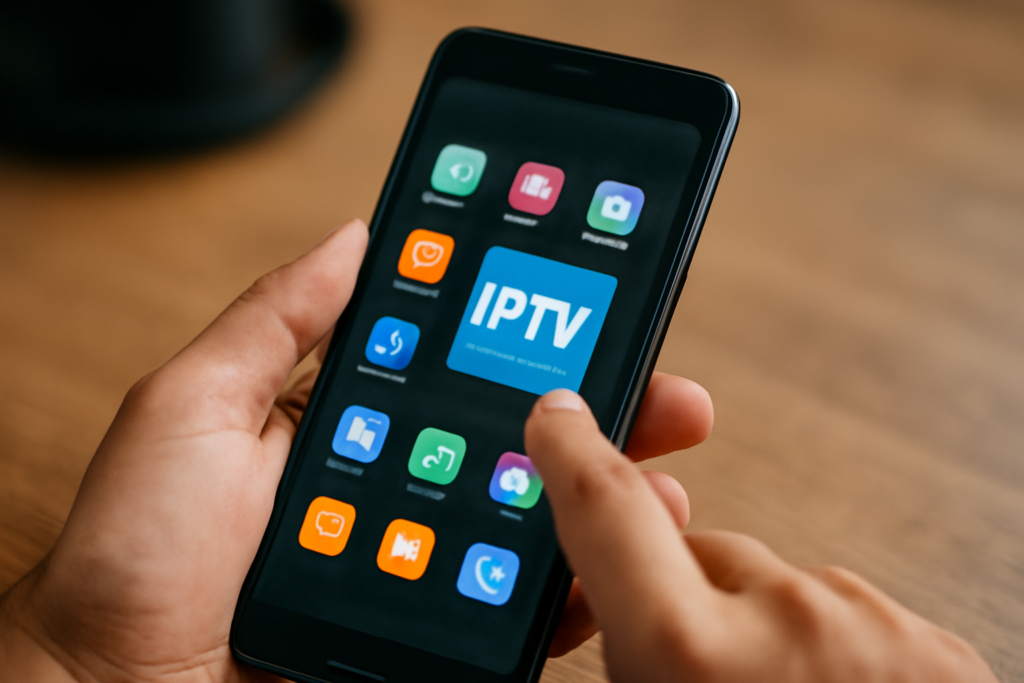
How to Install and Use IPTV Apps on Android Devices: Practical Guide
How to Install and Use IPTV Apps on Android Devices is the focus of this practical guide. The following sections explain useful options, key considerations and clear steps to help readers make an informed decision.
Understanding IPTV and Its Appeal on Android Devices
Internet Protocol Television (IPTV) has revolutionized how we access television content by streaming TV channels and media over the internet. Unlike traditional satellite or cable services, IPTV delivers content directly to your device via internet protocols, offering a flexible, customizable, and often more affordable alternative. For Android users, IPTV opens a gateway to a vast array of channels, including international, regional, and niche content, often at a fraction of the cost of conventional subscriptions.
While IPTV can significantly enhance your entertainment options, it’s crucial to approach its setup and use with caution. Proper installation, configuration, and security practices ensure a smooth experience and protect your device and personal data. This comprehensive guide will walk you through the essential steps to install IPTV apps on your Android device, configure them correctly, and use them safely and effectively.
Choosing the Right IPTV App for Android
Android supports a wide range of IPTV applications, both official and third-party. Selecting the right app depends on your specific needs, device compatibility, ease of use, and security features. Some apps are designed for simple playlist playback, while others support advanced features like EPG (Electronic Program Guide), multi-screen viewing, and integration with external players.
Popular IPTV apps for Android include:
- Perfect Player
- IPTV Smarters Pro
- GSE Smart IPTV
- TiviMate
Most of these apps are available for free or with optional premium features on the Google Play Store. However, some advanced functionalities or subscription services may require in-app purchases or external subscriptions.
When choosing an app, consider:
- Compatibility with your device and Android version
- Support for playlist formats like M3U, JSON, or Xtream Codes API
- User interface and ease of navigation
- Security features such as encryption or privacy controls
Step-by-Step Guide to Installing IPTV Apps on Android
1. Enable Unknown Sources or Install from Unknown Apps
Most IPTV apps not available directly from the Google Play Store require installation via APK files. To do this securely:
- Open your device Settings.
- Navigate to Security & Privacy (or Privacy, depending on your Android version).
- Find and select “Install unknown apps” or “Unknown sources.”
- Choose the browser or file manager you’ll use to download the APK.
- Enable the permission to install apps from this source.
Note: On newer Android versions, the process involves granting permission per app rather than a global setting.
2. Download the APK File from a Reputable Source
Always download APK files from trusted sources to avoid malware or compromised files. Official app websites or well-known APK repositories like APKMirror are safer options. Verify the APK’s authenticity and checksum if possible.
Save the APK file to your device’s storage, typically in the Downloads folder.
3. Install the IPTV App
Locate the downloaded APK file using your file manager or notification panel. Tap on it to initiate installation. Follow on-screen prompts, such as granting permissions, and wait for the process to complete.
Once installed, you may see the app icon on your home screen or app drawer.
4. Launch and Configure the IPTV App
Open the app and prepare to add your content source. This could be an M3U playlist URL, Xtream Codes API credentials, or a preconfigured playlist file provided by your IPTV service provider. The setup process varies slightly between apps but generally involves navigating to a “Settings” or “Add Playlist” section.
Using IPTV Apps Effectively and Safely
Adding Content Sources
Most IPTV apps allow you to input playlist URLs or upload playlist files. To do this:
- Open the app’s settings or playlist management section.
- Select the option to add a new playlist or source.
- Enter the URL of your M3U playlist or upload your playlist file.
- Configure additional settings such as EPG, channel sorting, or parental controls if available.
- Save your configuration and refresh the channel list.
Always verify that your playlist source is legitimate. Using licensed IPTV services or official content providers reduces legal risks and enhances security. Be cautious of free IPTV services claiming to offer extensive content without proper licensing, as they may be illegal or pose security threats. For more insights, see this article on IPTV risks.
Optimizing Streaming Performance
To enjoy smooth streaming, ensure your internet connection is fast and stable. A minimum of 10 Mbps is recommended for HD quality. Wired Ethernet connections or 5 GHz Wi-Fi networks provide more reliable bandwidth than 2.4 GHz networks.
Consider using a VPN to protect your privacy, especially when accessing geo-restricted content or using third-party IPTV sources. A VPN encrypts your internet traffic, safeguarding your data from potential eavesdroppers and preventing ISP throttling. For guidance, see this VPN guide.
Legal and Security Considerations
While IPTV offers flexible viewing options, not all sources are legal. Accessing unauthorized streams can lead to legal repercussions and expose your device to malware or phishing attacks. Always use licensed IPTV providers or official apps from reputable sources.
Be wary of third-party APKs or services promising free access to premium content, as they often violate copyright laws and may contain malicious code. Protect your device by installing security software, keeping your Android OS updated, and avoiding suspicious links or downloads.
For more on safe IPTV use, see this guide on IPTV safety practices.
Troubleshooting Common IPTV App Issues on Android
If you encounter problems such as buffering, app crashes, or channels not loading, try these steps:
- Check your internet speed and stability.
- Update the app to the latest version from the Google Play Store or official source.
- Clear the app cache via Settings > Apps > [App Name] > Storage > Clear Cache.
- Reinstall the app if problems persist.
- Verify your playlist URL or credentials for accuracy.
- Disable any VPN temporarily to check if it’s causing connectivity issues.
If issues continue, consult the app’s support resources or visit relevant forums for assistance. Troubleshooting guides specific to popular IPTV apps can often resolve common problems quickly.
Conclusion
Learning how to install and use IPTV apps on Android devices unlocks a world of diverse television content, often at a lower cost than traditional cable or satellite services. By choosing reputable apps, correctly configuring your playlists, and practicing good security habits, you can enjoy seamless streaming tailored to your preferences. Always stay within legal boundaries by using licensed sources and consider employing VPNs to safeguard your privacy and access geo-restricted content responsibly.
Further Reading and Resources
- Complete IPTV installation guide
- Legal considerations for IPTV in the UK
- Resolving IPTV streaming issues on Android
